The first fundraising campaign for Opal Wallet did not reach its 350 BCH target.
FundMe.cash recorded 7.99 BCH from two pledges, 2.28% of the target.
Thank you to the two people who pledged, and to everyone who took the time to look at the campaign. The result is disappointing, but it does not change why 58 Opals started this work.
Refunds
58 Opals did not claim the pledged BCH. Refunds are not automatic. Each pledger must open the FundMe.cash campaign with the wallet that controls the PledgeNFT and use the refund action. Questions can go to fundraising@opalwallet.cash.
The work began before the campaign, continued while it was running, and will continue after it. Without funding, progress may take more time and priorities may need to stay tighter. The direction remains the same: build an excellent Bitcoin Cash wallet for Apple platforms and a strong public Swift foundation that other developers can use.
The most valuable support now is participation. Use the packages, review the code, test the APIs, report issues, and tell 58 Opals what can be improved. If you care about Bitcoin Cash on Apple platforms, share the work with developers who can put it to use.
A strong Bitcoin Cash ecosystem on Apple platforms will take more than one wallet or one team. 58 Opals will keep contributing its part and invites others to build alongside it.
Opal Crypto now reaches up to 4.73× the throughput for large batches of public Bitcoin Cash Schnorr verification on the specifically qualified Apple M1 Max.
Opal Crypto production API throughput compared with multicore Swift.
Production workload
4,096 records
8,192 records
One cached verification key
1.44–1.81×
2.43–2.97×
Different key per record
2.25–2.77×
3.86–4.73×
At 8,192 records, cached-key verification dropped from 344–417 ms on multicore Swift to 135–143 ms on Metal. Varying-key verification dropped from 564–707 ms to 141–150 ms. That is 59–79% less elapsed time.
These results come from five fresh processes through the production API, including batch construction, preparation, dispatch, and readback.
The API stays simple. Developers submit an immutable Schnorr.VerificationBatch and receive one ordered Bool per signature. The default .automatic policy chooses optimized multicore Swift or Metal for the workload and environment. If Metal cannot complete the work, Opal Crypto recomputes the batch on CPU. The same API runs through optimized multicore Swift across other Apple devices.
The speed came from making the whole path more efficient: batching repeated work, preparing shared keys once, reducing allocation and copying, balancing work across CPU cores, caching cryptographic data, and building a purpose-made Metal implementation.
This work gives Opal Wallet a faster foundation for verification, restoration, and scanning. It is especially important for upcoming reusable payment address (RPA) support, where the wallet may need to process many candidate public keys and shared-secret derivations. Opal Base can build on Opal Crypto’s optimized batch primitives and benchmark framework to make local scanning and historical catch-up faster.
The goal is simple: advanced Bitcoin Cash features that still feel fast, native, and dependable in Opal Wallet.
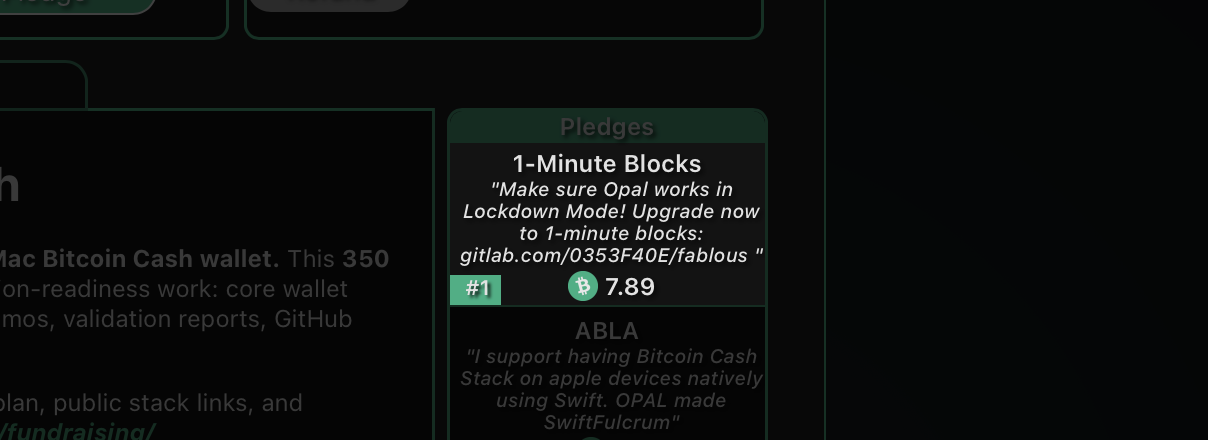
"Make sure [Opal Wallet] works in Lockdown Mode! Upgrade now to 1-minute blocks: gitlab.com/0353F40E/fablous"
Since Apple introduced Lockdown Mode, I have thought it could be interesting for Bitcoin Cash wallets. Even though it does not turn an iPhone into a true cold wallet, it can make an old spare iPhone much more useful as a hardened savings device.
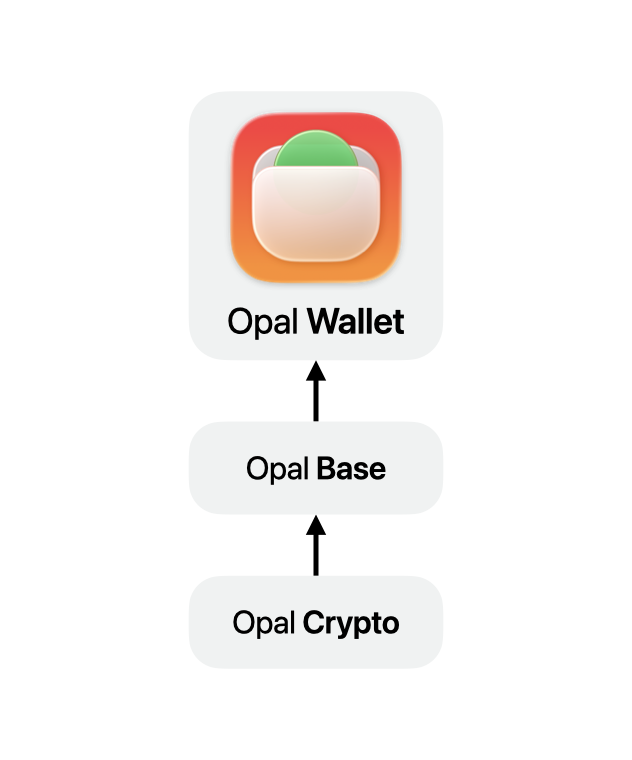
So I started looking at Opal Base, the backbone of Opal Wallet, and Opal Crypto, the signing and cryptography layer below it.
The current architecture already has good pieces for this: Secure Enclave-backed storage, stricter persistence policy, read-only wallet lanes, and separate transaction authoring and broadcast paths.
The gaps are mostly about making the safer path explicit.
Opal Base should have a first-class savings or offline-signer profile. That profile should make it natural for the wallet layer to keep signing authority separate from network activity. It should also avoid weak storage fallbacks in this path.
The transaction flow needs work too. Opal Wallet should be able to prepare an unsigned spend, move it to the signer, sign there, and move the signed result back for broadcast. That means a public unsigned-spend envelope and a signing path that keeps private key material short-lived.
Opal Crypto has its own follow-up work. The lower-level signing APIs should make it harder to pass raw private key data around longer than needed.
Lockdown Mode belongs to iOS, and the wallet app still has to guide the user through device setup, offline signing, and QR handoff.
Even though the device posture lives at the app and iOS layer, Opal Base and Opal Crypto can make the wallet architecture ready for it.
This is achievable in the six-month funded phase. I will work on it.
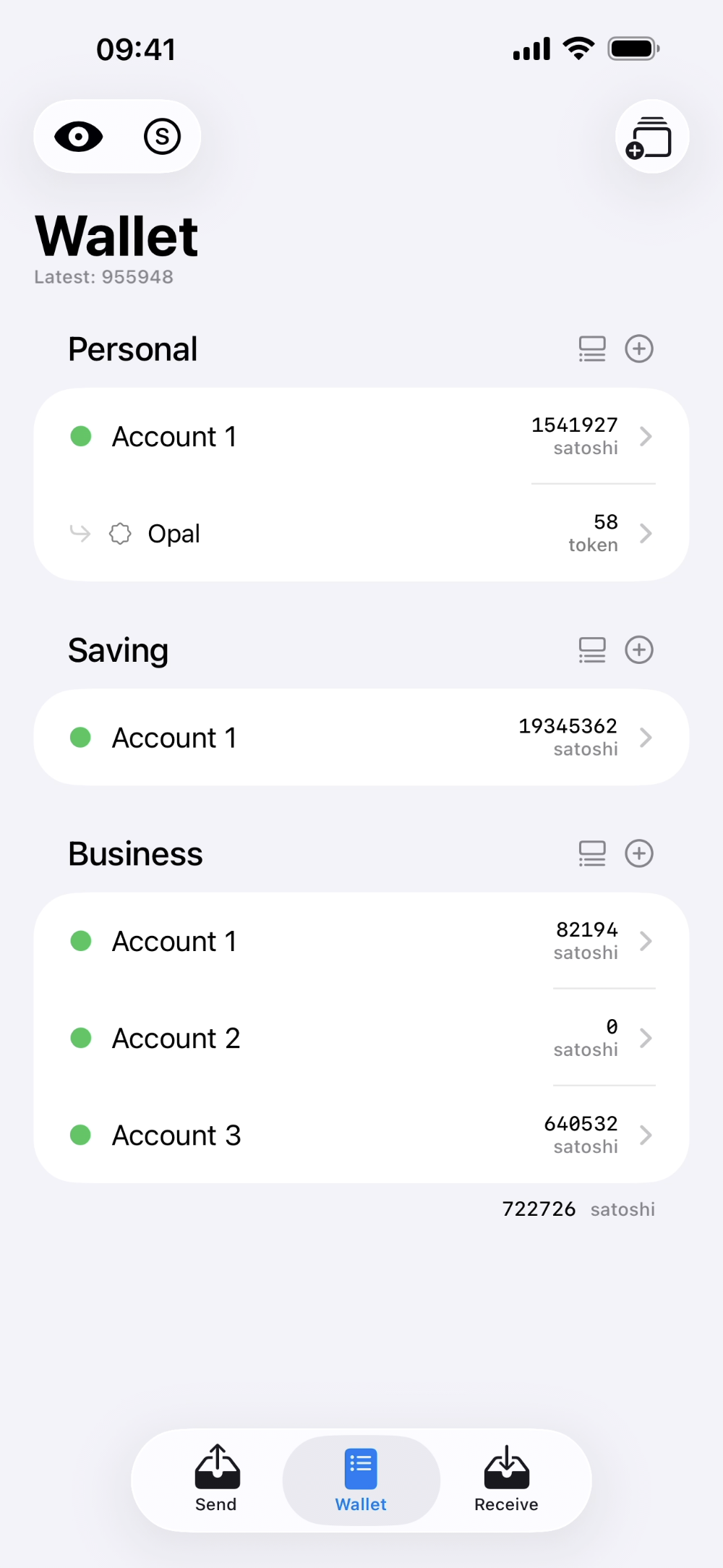
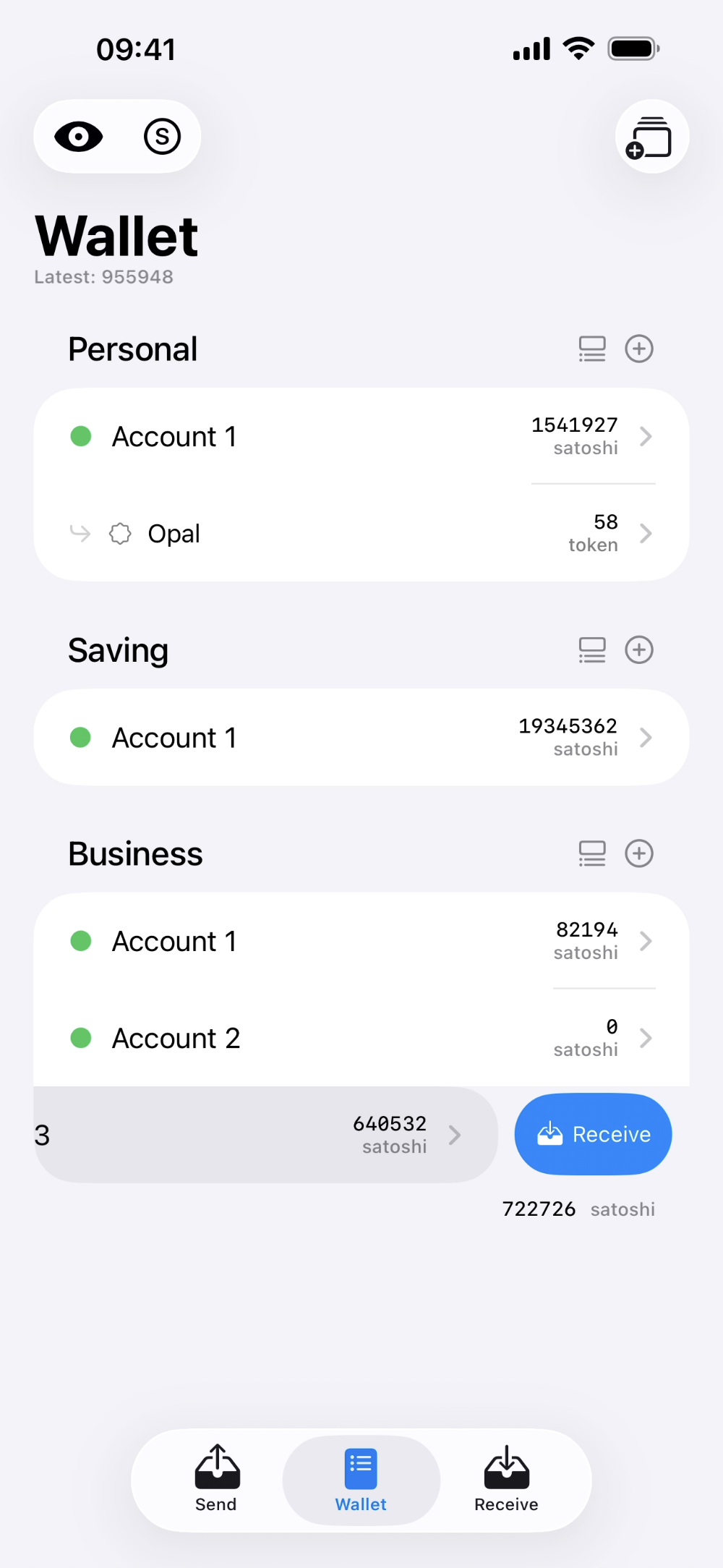
Opal Wallet's main tab layout starts from one rule: Wallet is home.
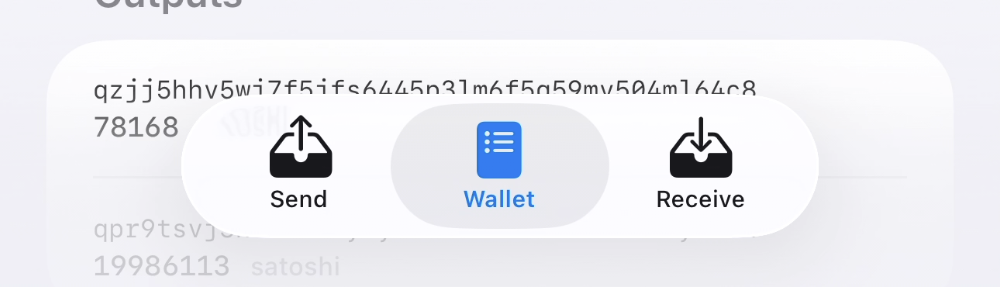
That is why the tab bar is arranged as Send, Wallet, Receive. The center tab is the default view, with Send and Receive placed on either side as actions around the wallet.
The account row gestures follow the same map. Swipe toward Send or Receive, and Opal Wallet carries the wallet context into that action.
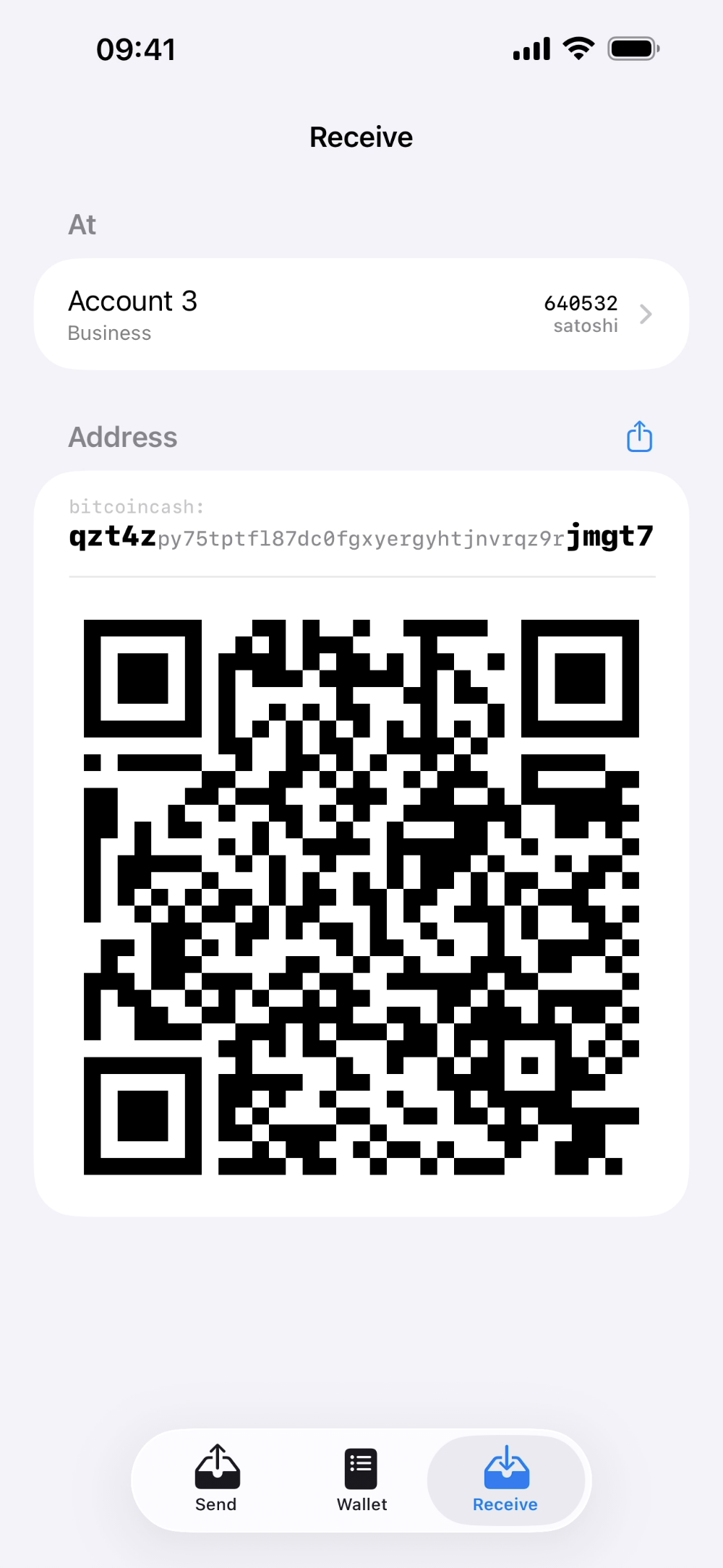
The Receive path is a small example: start from Wallet, swipe the account row toward Receive, and Opal Wallet opens the Receive flow for the same wallet.
WalletStart from the account row.Swipe to ReceiveThe gesture moves toward the Receive side.ReceiveThe Receive flow opens with the same wallet context.
This is also where Liquid Glass matters. It helps the interface stay light and layered while keeping the workflow visible: wallet first, then action.
In a market full of wallet dashboards, this is one of Opal Wallet's product advantages. Everyday BCH actions stay connected to the wallet they come from.